---
title: How to Select Reviews and Add Them to a Page
description: In this article, you'll learn how to select reviews and add them to a page on your v2 Curaytor website.
---
[Skip to content](https://v2-help.curaytor.com/v2-help/how-to-select-reviews-and-add-them-to-a-page#main-content)
English
Show submenu for translations
[](https://v2-help.curaytor.com/v2-help/?hsLang=en)
Open main navigation
Close main navigation
- English
Show submenu for translations
How can we help you?
- There are no suggestions because the search field is empty.
1. [Curaytor Website Help Center (v2)](https://v2-help.curaytor.com/v2-help?hsLang=en)
2. [Curaytor Website](https://v2-help.curaytor.com/v2-help/curaytor-website?hsLang=en)
# How to Select Reviews and Add Them to a Page
## In this article, you'll learn how to select reviews and add them to a page on your v2 Curaytor website.
This allows you to control where the reviews appear on your website.
Here are the steps to follow:
1. **Login to the Curaytor platform.**
2. **Go to content.curaytor.com. This will bring you to the backend of your site.**
3. **Click "Edit" on the page you'd like to edit. 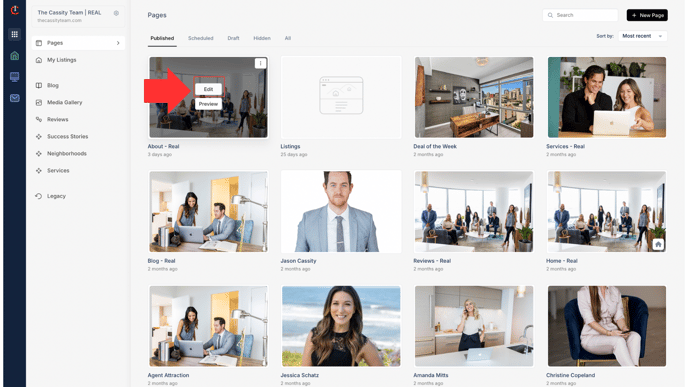**
4. **If you want to add a Reviews section, click the "+" sign on the page \> Reviews \> choose the style you want to display the reviews in. 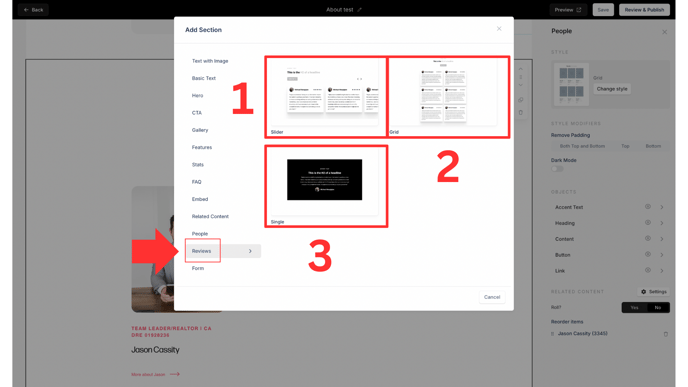**
**Regardless of the style you choose, after you select it, click "Settings" on the right (across from "Reviews"), click "Hand select reviews", and check the box of the reviews you'd like to display. 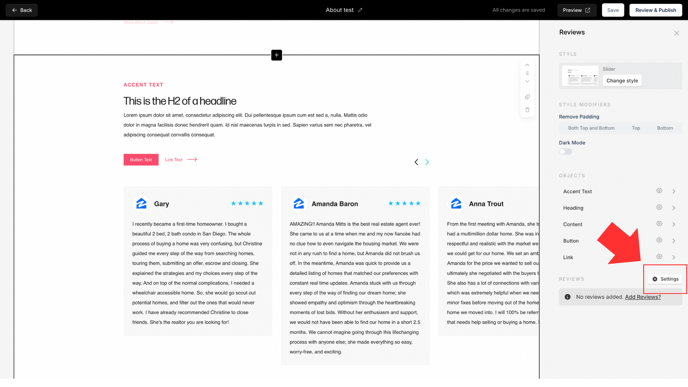**
5. **If you already have a Reviews object, and you'd like to add reviews to the object, simply click on the Reviews object, click "Settings" on the right (across from "Reviews"), click "Hand select reviews" and check the box of the review you'd like to display. 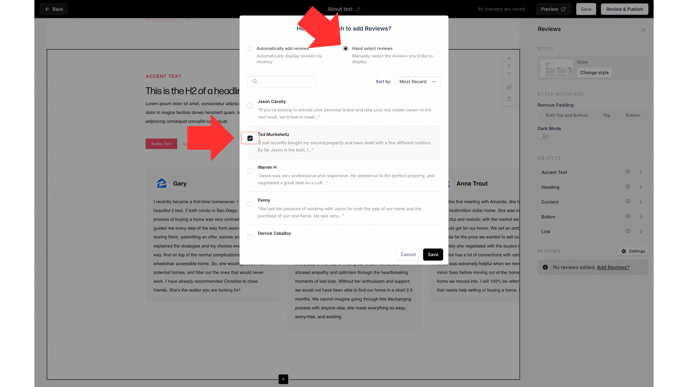**
6. **Click "Save." 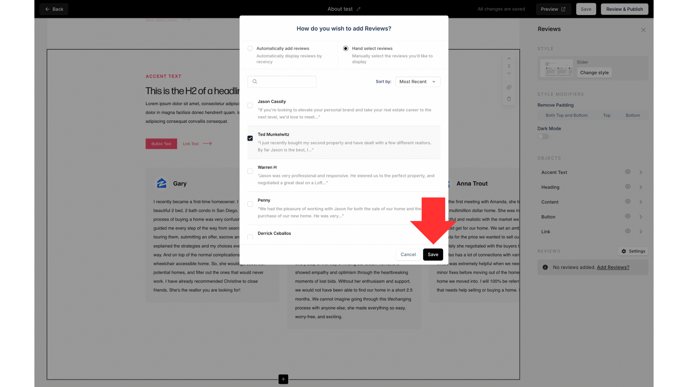**
*\*Please note that you can also rearrange the reviews in the order you'd like them displayed on your site by dragging them to a different placement.*
7. ****Remember that within the reviews object, you can hide any of the components of the object to format it how you'd like it (Accent Text, Heading, Content, Button Link) by clicking the "eye" icon on the right sidebar. 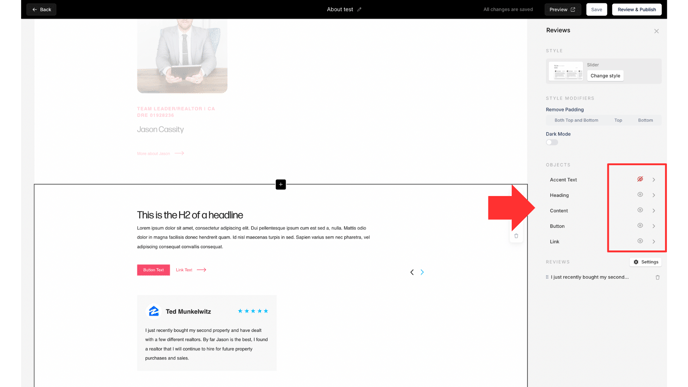****
Watch the video below for a full walkthrough 👇
[https://www.loom.com/share/4d4922270273428597209952df603dc3?sid=7a473743-1eb0-458b-a75a-8b0caad0c160](https://www.loom.com/share/4d4922270273428597209952df603dc3?sid=7a473743-1eb0-458b-a75a-8b0caad0c160)
- [Curaytor Website](https://v2-help.curaytor.com/v2-help/curaytor-website?hsLang=en#main-content)
- [Listing Pages](https://v2-help.curaytor.com/v2-help/curaytor-website?hsLang=en#listing-pages)
- [Curaytor Training Assets](https://v2-help.curaytor.com/v2-help/curaytor-training-assets?hsLang=en)
[](https://api.curaytor.io/sites/1/media/210191/curaytor-logo-new-compressor.png)
[mailto:email@email.com](mailto:email@email.com)
Copyright © 2026, Curaytor