---
title: How to Edit Published Pages
description: In this article, you'll learn how to edit published pages on your v2 Curaytor website.
---
[Skip to content](https://v2-help.curaytor.com/v2-help/how-to-edit-published-pages#main-content)
English
Show submenu for translations
[](https://v2-help.curaytor.com/v2-help/?hsLang=en)
Open main navigation
Close main navigation
- English
Show submenu for translations
How can we help you?
- There are no suggestions because the search field is empty.
1. [Curaytor Website Help Center (v2)](https://v2-help.curaytor.com/v2-help?hsLang=en)
2. [Curaytor Website](https://v2-help.curaytor.com/v2-help/curaytor-website?hsLang=en)
# How to Edit Published Pages
## In this article, you'll learn how to edit published pages on your v2 Curaytor website.
Whether you want to add/replace images and/or videos, edit the copy, add new objects, restructure the page, or play with stylistic elements, here are the steps to follow:
1. **Login to the Curaytor platform.**
2. **Go to content.curaytor.com. This will bring you to the backend of your site.**
3. **Hover over the page you'd like to edit and click "Edit." 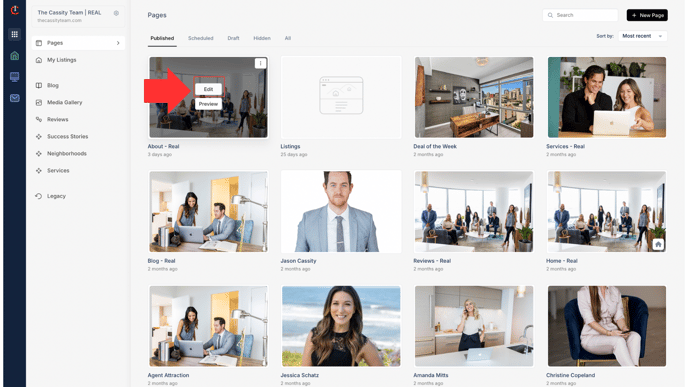**
4. **Make the edits you'd like to the page—whether it's editing the copy, updating an image or video, or creating a new section to your page.**
To edit the copy, simply click on the text you'd like to edit, and make your updates. The page will save automatically.
To update images, simply click on the image or video you'd like to update. Under "Media" you can change the image, or toggle to "Video" and either add a YouTube link or upload an mp4 file.
*\*Please note that there is no file size limitation for videos, but you always want the video to be as small as possible for page speed.*
*\*Also note that when you upload an mp4 file, it will take a few minutes to upload. 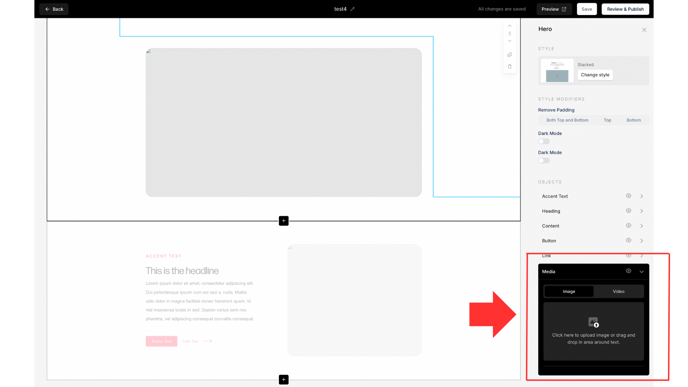*
Remember, if you'd like to hide any components of an object (accent text, heading, content, media), simply click the "eye" icon to hide it from the page. 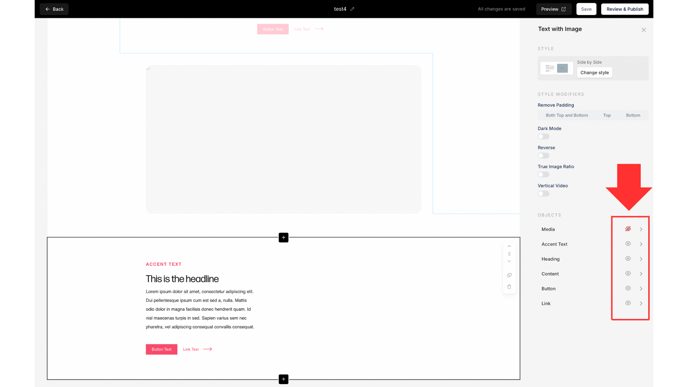
5. **Your updates will save and update on your site automatically.**
*\*Please note that it may take up to a few minutes for the changes to show on your live site.*
Watch the video below for a full walkthrough 👇
[https://www.loom.com/share/f68c5267942f4f50aa334b98608d4525?sid=f7dcfa63-ed3d-466f-8b49-d9f8f5e58186](https://www.loom.com/share/f68c5267942f4f50aa334b98608d4525?sid=f7dcfa63-ed3d-466f-8b49-d9f8f5e58186)
**How to use the style modifiers:**
Within each section/object that you add to your site, you'll notice there are style modifiers on the right sidebar. Here's how and when to use each of them:
**👉Remove Padding:** When you notice that there seems to be a lot of white space between the objects, simply select "Both Top and Bottom" "Top" or "Bottom" to tighten the white space on the page. To de-select, you'll just need to click on the option again.
**👉Dark Mode:** Toggle this when you'd like to move from white \> dark.
**👉Reverse:** Toggle this when you'd like to reverse the way the text and image display.
**👉True Image Ratio:** Toggle this when you'd like to reformat the image to fit the true size.
**👉Vertical Video:** Toggle this only when you're uploading a vertical video to have it format properly.
*\*Please note that not every style modifier is available within every section/object. The style modifier available will depend on which object you choose.*
- [Curaytor Website](https://v2-help.curaytor.com/v2-help/curaytor-website?hsLang=en#main-content)
- [Listing Pages](https://v2-help.curaytor.com/v2-help/curaytor-website?hsLang=en#listing-pages)
- [Curaytor Training Assets](https://v2-help.curaytor.com/v2-help/curaytor-training-assets?hsLang=en)
[](https://api.curaytor.io/sites/1/media/210191/curaytor-logo-new-compressor.png)
[mailto:email@email.com](mailto:email@email.com)
Copyright © 2026, Curaytor