---
title: How to Create and Publish New Pages
description: In this article, you'll learn how to create and publish new pages on your v2 Curaytor website.
---
[Skip to content](https://v2-help.curaytor.com/v2-help/how-to-create-and-publish-new-pages#main-content)
English
Show submenu for translations
[](https://v2-help.curaytor.com/v2-help/?hsLang=en)
Open main navigation
Close main navigation
- English
Show submenu for translations
How can we help you?
- There are no suggestions because the search field is empty.
1. [Curaytor Website Help Center (v2)](https://v2-help.curaytor.com/v2-help?hsLang=en)
2. [Curaytor Website](https://v2-help.curaytor.com/v2-help/curaytor-website?hsLang=en)
# How to Create and Publish New Pages
## In this article, you'll learn how to create and publish new pages on your v2 Curaytor website.
Here are the steps to follow:
1. **Login to the Curaytor platform.**
2. **Go to content.curaytor.com. This will bring you to the backend of your site.**
3. **Click "+ New Page" on the top right corner of your screen. 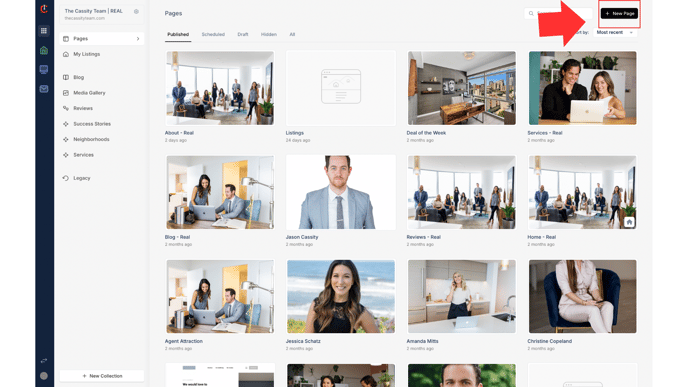**
4. ****From here you can select a template, or you can start with a blank page. 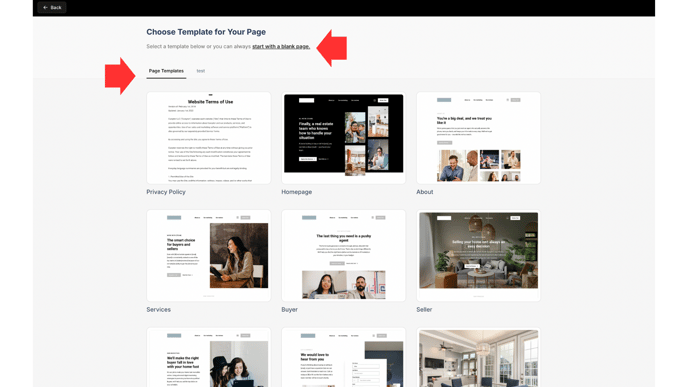****
5. ****Click the option you'd like, and name your page. ****
6. ****Now you can create the page however you'd like. Click the "+" on your screen to add sections. 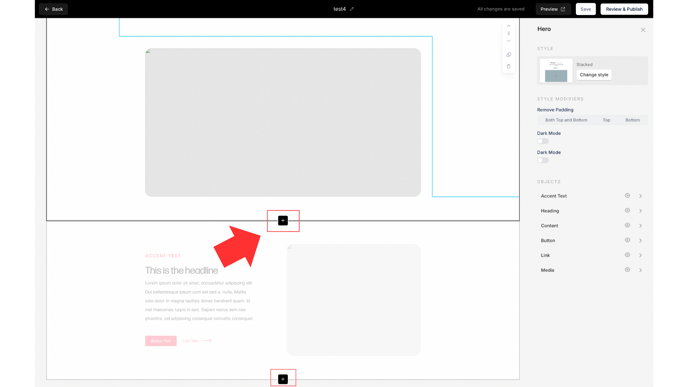****
7. **To edit the copy, simply click on the text. **
**To add images, simply click on the photo you'd like to replace, and upload a new image. To add videos, toggle to the "Video" and either add a YouTube link or upload an mp4 file. **
*\*Please note that there is no file size limitation for videos, but you always want the video to be as small as possible for page speed.*
*\*Also note that when you upload an mp4 file, it will take a few minutes to upload. 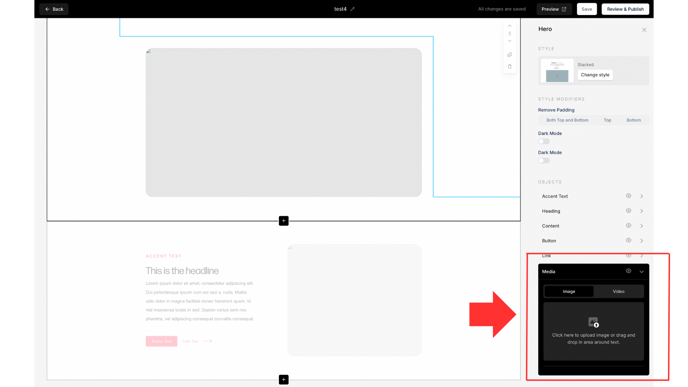*
To edit the buttons and/or links, click on the button/link, edit the copy, select the page you'd like the button/link to go to (note: In order to show up, the page must be published), or toggle to "External URL" and add the URL you'd like the button/link to go to. 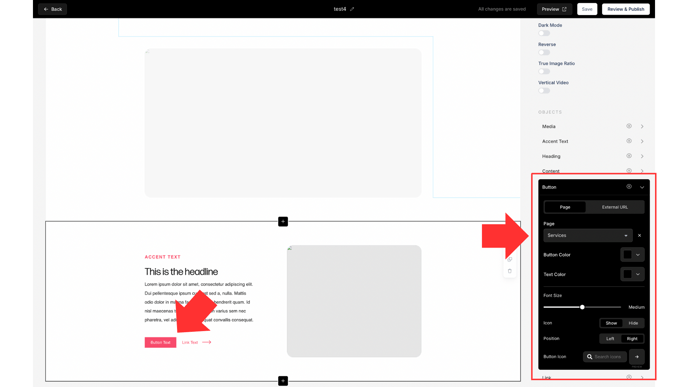
To hide any components of the object, click the "eye" icon on the right, next to the component you'd like to hide. 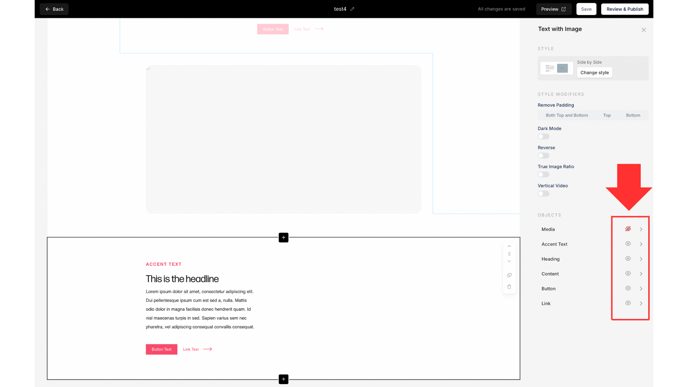
**How to use the style modifiers:**
Within each section/object that you add to your site, you'll notice there are style modifiers on the right sidebar. Here's how and when to use each of them:
**👉Remove Padding:** When you notice that there seems to be a lot of white space between the objects, simply select "Both Top and Bottom" "Top" or "Bottom" to tighten the white space on the page. To de-select, you'll just need to click on the option again.
**👉Dark Mode:** Toggle this when you'd like to move from white \> dark.
**👉Reverse:** Toggle this when you'd like to reverse the way the text and image display.
**👉True Image Ratio:** Toggle this when you'd like to reformat the image to fit the true size.
**👉Vertical Video:** Toggle this only when you're uploading a vertical video to have it format properly.
*\*Please note that not every style modifier is available within every section/object. The style modifier available will depend on which object you choose.*
8. **When you're ready to publish your page, select "Review & Publish" where you can edit the Page Title, slug, Meta Settings, and Featured Image 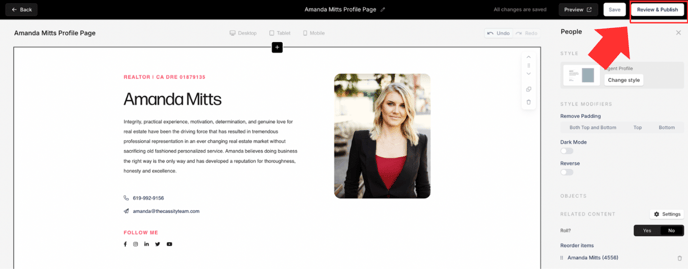 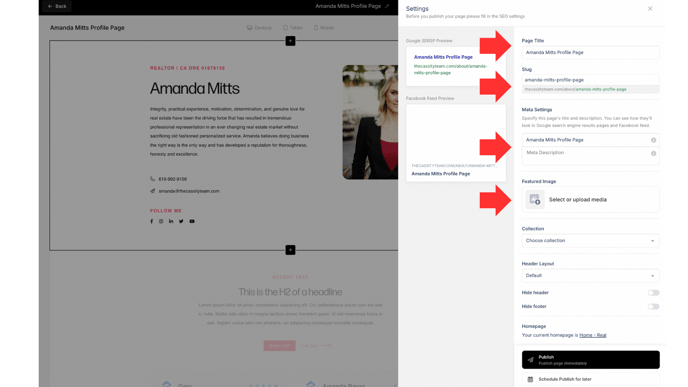**
9. **Click "Publish" 🚀 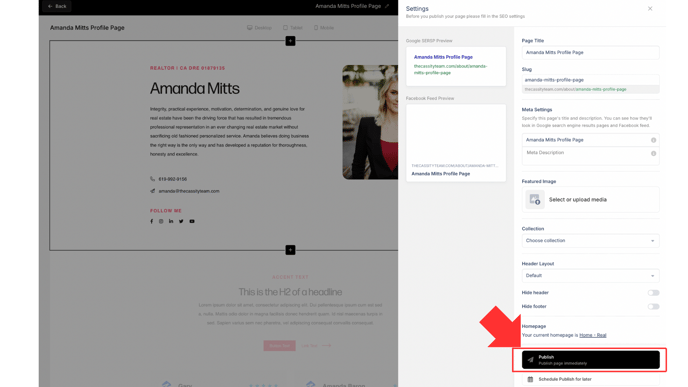**
Watch the video below for a full walkthrough 👇
[https://www.loom.com/share/5c878017445f47ccaffc8047b202eb2c?sid=e2d942ae-c355-4f79-955a-3591927a165e](https://www.loom.com/share/5c878017445f47ccaffc8047b202eb2c?sid=e2d942ae-c355-4f79-955a-3591927a165e)
- [Curaytor Website](https://v2-help.curaytor.com/v2-help/curaytor-website?hsLang=en#main-content)
- [Listing Pages](https://v2-help.curaytor.com/v2-help/curaytor-website?hsLang=en#listing-pages)
- [Curaytor Training Assets](https://v2-help.curaytor.com/v2-help/curaytor-training-assets?hsLang=en)
[](https://api.curaytor.io/sites/1/media/210191/curaytor-logo-new-compressor.png)
[mailto:email@email.com](mailto:email@email.com)
Copyright © 2026, Curaytor