---
title: How to Add and Edit Reviews to the Platform
description: In this article, you'll learn how to add and edit reviews to the backend of your v2 Curaytor website.
---
[Skip to content](https://v2-help.curaytor.com/v2-help/how-to-add-and-edit-reviews-to-the-platform#main-content)
English
Show submenu for translations
[](https://v2-help.curaytor.com/v2-help/?hsLang=en)
Open main navigation
Close main navigation
- English
Show submenu for translations
How can we help you?
- There are no suggestions because the search field is empty.
1. [Curaytor Website Help Center (v2)](https://v2-help.curaytor.com/v2-help?hsLang=en)
2. [Curaytor Website](https://v2-help.curaytor.com/v2-help/curaytor-website?hsLang=en)
# How to Add and Edit Reviews to the Platform
## In this article, you'll learn how to add and edit reviews to the backend of your v2 Curaytor website.
This allows you to keep your website fresh with your most recent reviews.
Here are the steps to follow:
1. **Login to the Curaytor platform.**
2. **Go to content.curaytor.com. This will bring you to the backend of your site.**
3. **Click "Reviews" on the left sidebar. 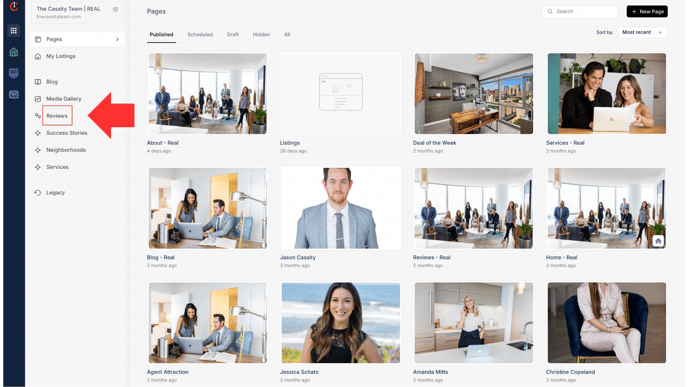**
4. **Click "+New Review" on the top right corner of your screen. 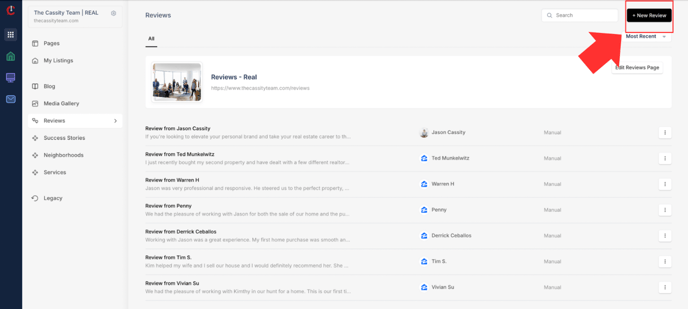**
5. **Copy and paste the review text, add their full name, the subtext *(i.e. where the review came from—Google, Zillow, Facebook, etc)*, and the headline *(i.e. an important sentence from the review. If you were to ever display this review as a featured review on your site, the headline would show up at the top of the review)*. 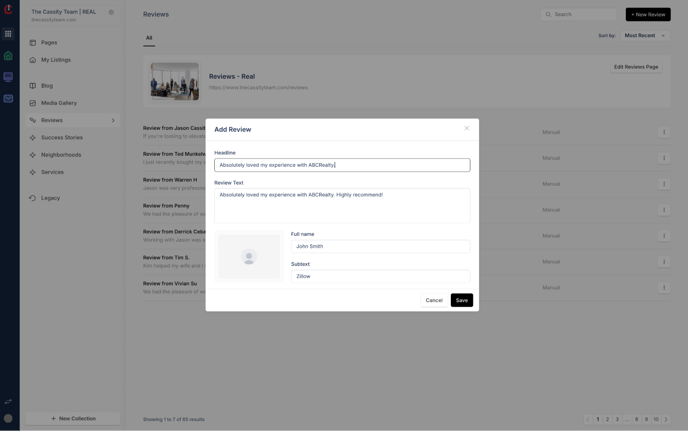**
6. **Add a photo to your review *(i.e. this could be a Zillow/Google/Facebook icon—or an icon of wherever the review was displayed, or it could be your logo)* by clicking on the photo space and selecting your image. 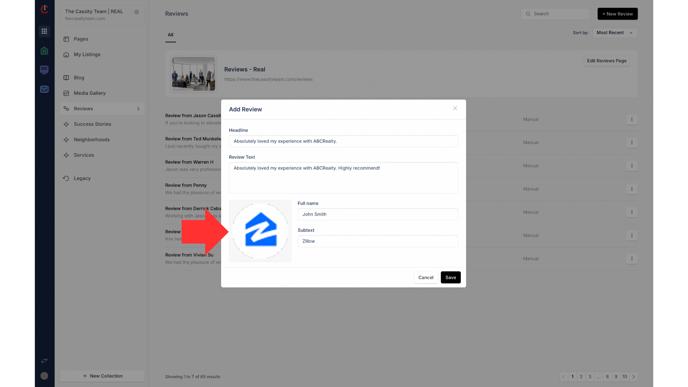**
7. **Click "Save." 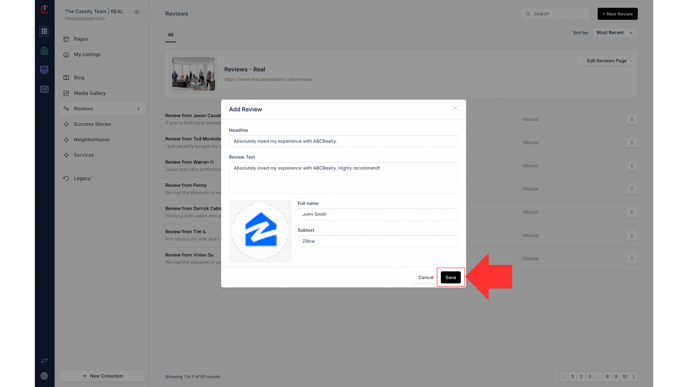**
8. **Whenever you'd like to edit or delete a review, click the 3 dots on the right of the review, click either "Edit" or "Delete." 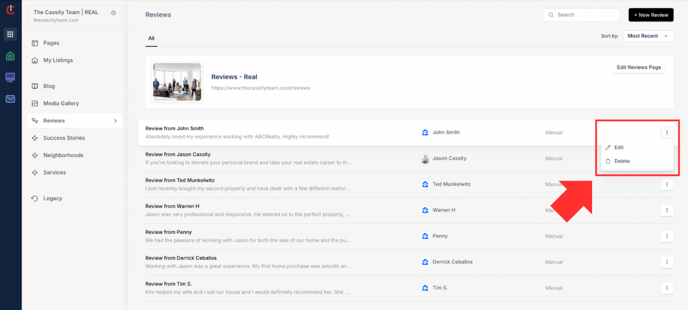**
9. **Once you finish editing the review, click "Save." **
Watch the video below for a full walkthrough 👇
[https://www.loom.com/share/fd2580bd5c25439bba961940145e95a5?sid=34095dc9-47b2-448e-9d6e-36e1a9beff3e](https://www.loom.com/share/fd2580bd5c25439bba961940145e95a5?sid=34095dc9-47b2-448e-9d6e-36e1a9beff3e)
- [Curaytor Website](https://v2-help.curaytor.com/v2-help/curaytor-website?hsLang=en#main-content)
- [Listing Pages](https://v2-help.curaytor.com/v2-help/curaytor-website?hsLang=en#listing-pages)
- [Curaytor Training Assets](https://v2-help.curaytor.com/v2-help/curaytor-training-assets?hsLang=en)
[](https://api.curaytor.io/sites/1/media/210191/curaytor-logo-new-compressor.png)
[mailto:email@email.com](mailto:email@email.com)
Copyright © 2026, Curaytor