---
title: How to Add a Team Member
description: In this article, you'll learn how to add a new team member to your v2 Curaytor website.
---
[Skip to content](https://v2-help.curaytor.com/v2-help/how-to-add-a-team-member#main-content)
English
Show submenu for translations
[](https://v2-help.curaytor.com/v2-help/?hsLang=en)
Open main navigation
Close main navigation
- English
Show submenu for translations
How can we help you?
- There are no suggestions because the search field is empty.
1. [Curaytor Website Help Center (v2)](https://v2-help.curaytor.com/v2-help?hsLang=en)
2. [Curaytor Website](https://v2-help.curaytor.com/v2-help/curaytor-website?hsLang=en)
# How to Add a Team Member
## In this article, you'll learn how to add a new team member to your v2 Curaytor website.
Here are the steps to follow:
1. **Login to the Curaytor platform.**
2. **Go to content.curaytor.com. This will bring you to the backend of your site.**
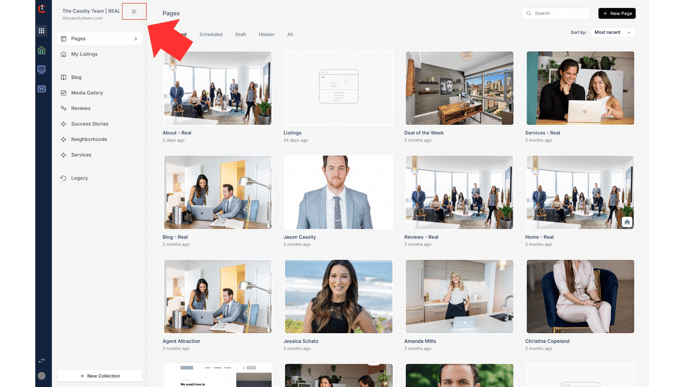
3. **Click the settings icon in the top left corner of your screen.**
****
4. **Click "Add People" 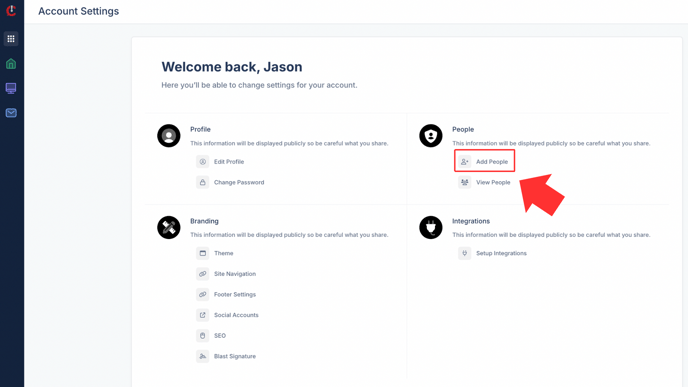**
5. **Click "+ Invite Member" 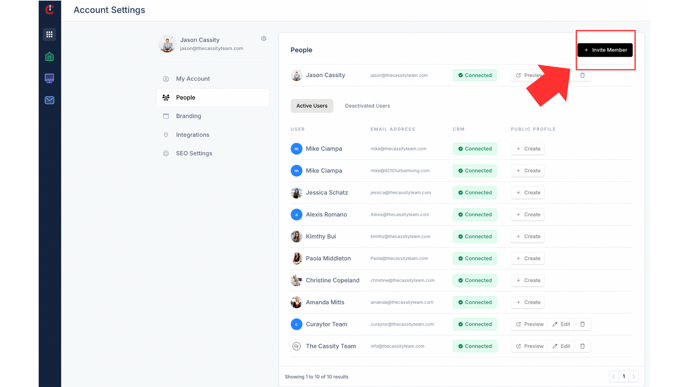**
6. **Enter the email(s) of the team members you'd like to invite to the platform. 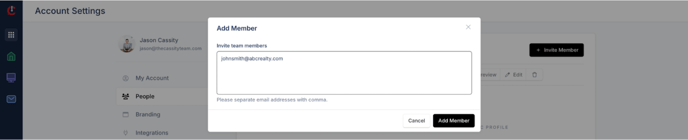**
7. **Your team member will receive an email with the subject line: *Invitation to Curaytor 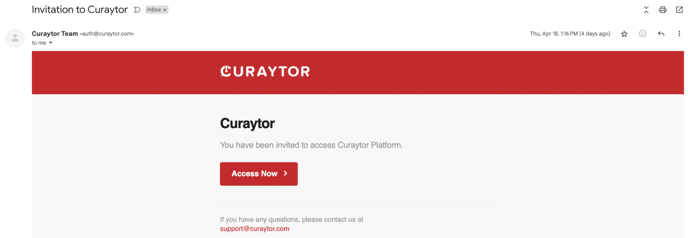***
8. **Once your team member creates an account, they will show up under "Active Users" at the bottom of your team member list. 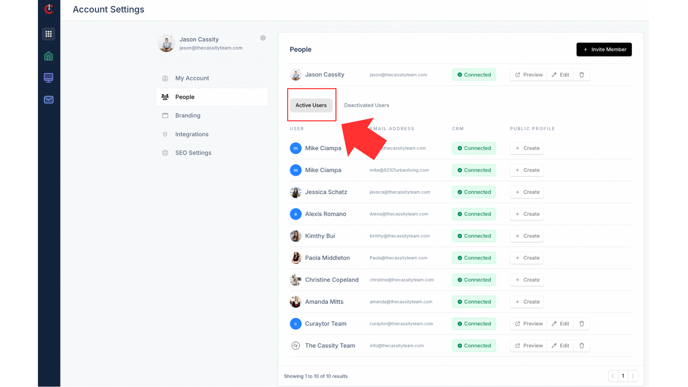**
9. **From here, you'll want to click "Manage" (this option appears on the right when you hover over the team member's name) 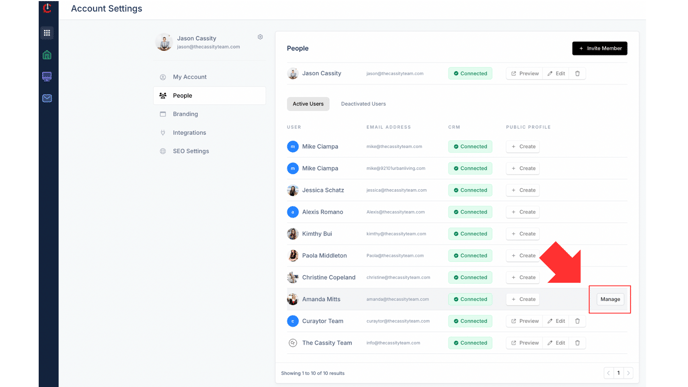**
10. **You can add their name, headshot, bio, phone, email, position, and even social links. Click "Save." Then click the back arrow. 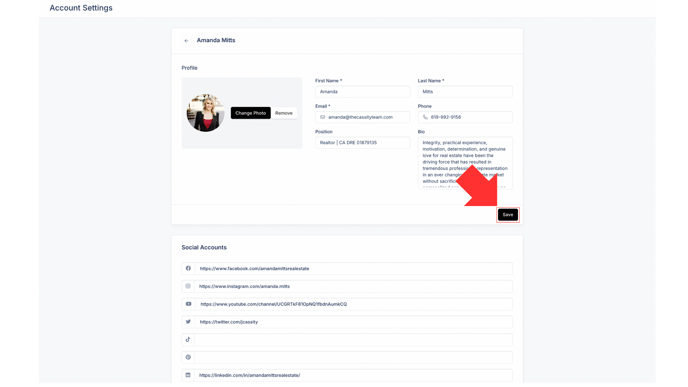**
11. **Now, you'll want to create their individual page. Now you'll click "Create." 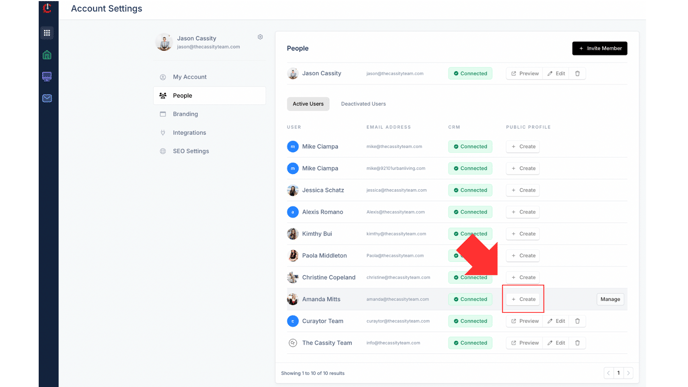**
12. **Click on the top object, click "Change Style" on the right, and scroll all the way down to select "Agent Profile." 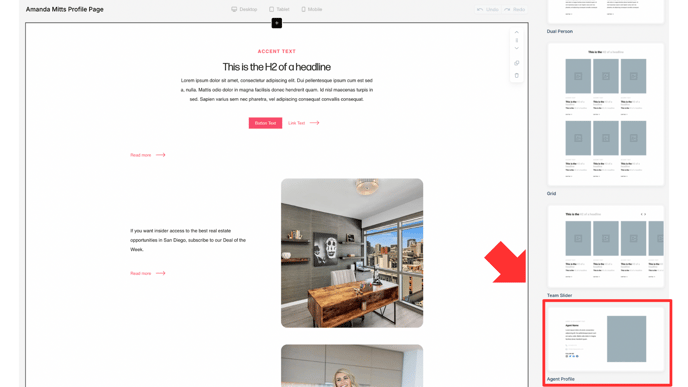**
13. **Click "Settings" on the right \> "Hand Select Pages" \> "User" \> and select the new team member that you just added. 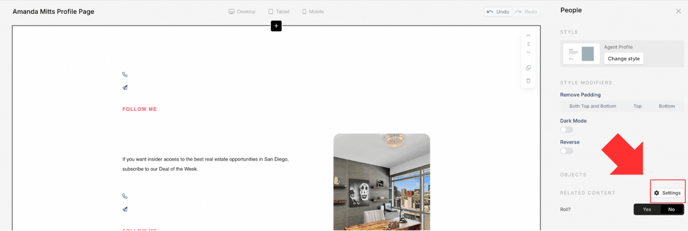 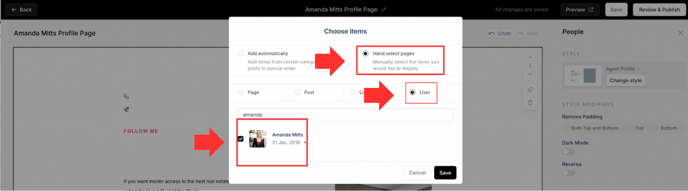**
14. **You can delete the rest of the pre-populated objects on the page. 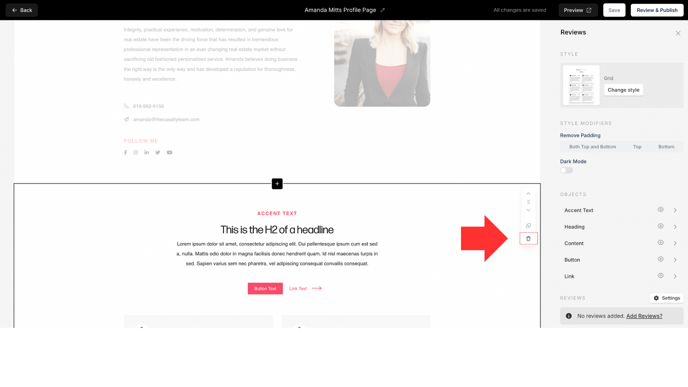**
15. **Then build out the rest of the page however you'd like by clicking the "+" and adding sections. *(i.e. add a CTA/form, reviews, lifestyle photos, etc.) 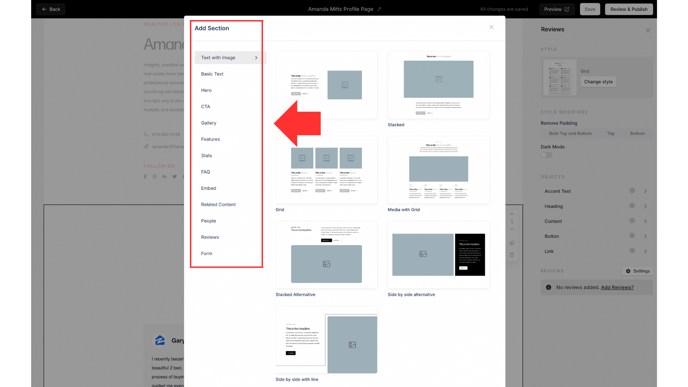***
16. **When you're ready to publish your page, select "Review & Publish" where you can edit the Page Title, slug, Meta Settings, and Featured Image 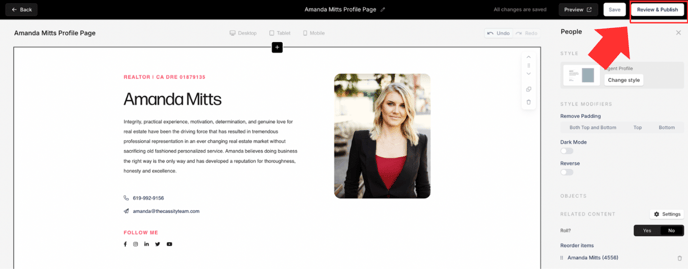 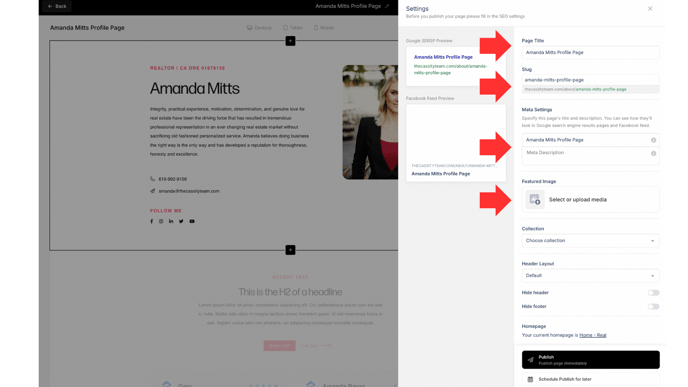**
17. **Click "Publish" 🚀 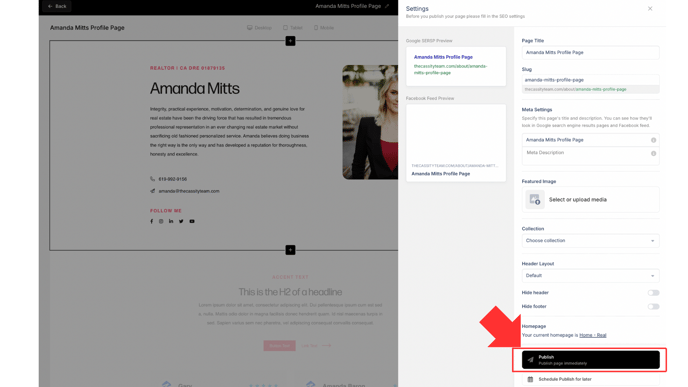**
Watch the video below for a full walkthrough 👇
[https://www.loom.com/share/6d366923660c481cad311cea843d9458?sid=7b3c4e42-ba91-4ed8-aa8a-275b0be80db9](https://www.loom.com/share/6d366923660c481cad311cea843d9458?sid=7b3c4e42-ba91-4ed8-aa8a-275b0be80db9)
### If you want to add this team member to your About page, here are the steps to follow:
1. **Login to the Curaytor platform.**
2. **Go to content.curaytor.com. This will bring you to the backend of your site.**
3. **Click "Edit" on your About page. 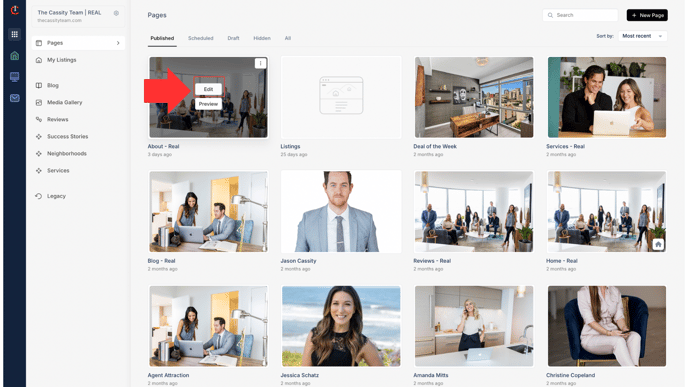**
4. **If you already have team members displayed, scroll down to that section. If you need to create that section, click the "+" to add a section/object to your page, select "People" \> Team Slider.** *\*Please note that if you want to experiment with a different style, you can also use "People \> Grid" or "People \> Dual Person" 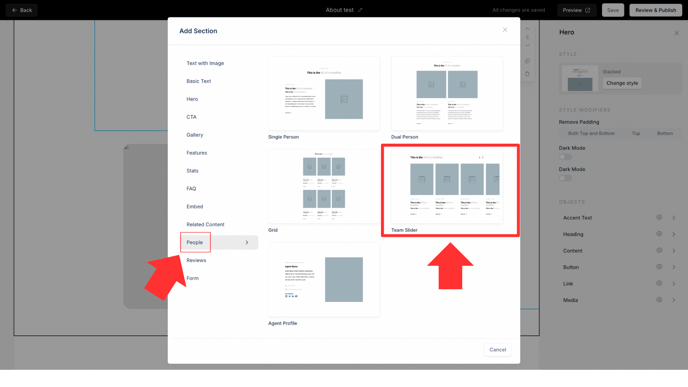*
5. ***Click "Settings" next to "Related Content" on the right sidebar. 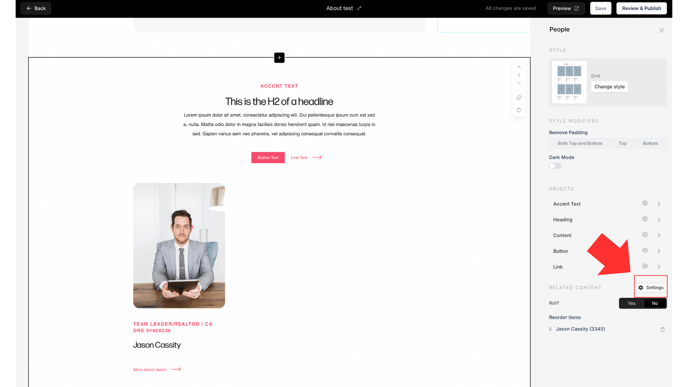***
6. **Click "Hand select pages," select "User," type the name of each team member, and check their box to have them displayed. Click "Save." ***\*Please note that you can rearrange how the agents are displayed by dragging and dropping them in a different order on the right sidebar. 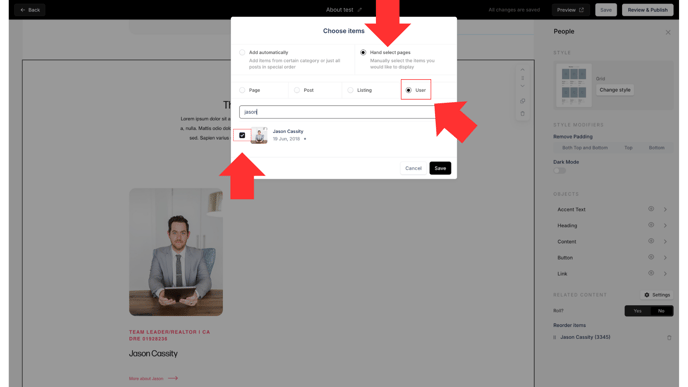*
Watch the video below for a full walkthrough 👇
[https://www.loom.com/share/7b71bd048c154b6f844ebb9ad8622281?sid=7a65cb2e-343d-48d8-9623-22fe7141f032](https://www.loom.com/share/7b71bd048c154b6f844ebb9ad8622281?sid=7a65cb2e-343d-48d8-9623-22fe7141f032)
- [Curaytor Website](https://v2-help.curaytor.com/v2-help/curaytor-website?hsLang=en#main-content)
- [Listing Pages](https://v2-help.curaytor.com/v2-help/curaytor-website?hsLang=en#listing-pages)
- [Curaytor Training Assets](https://v2-help.curaytor.com/v2-help/curaytor-training-assets?hsLang=en)
[](https://api.curaytor.io/sites/1/media/210191/curaytor-logo-new-compressor.png)
[mailto:email@email.com](mailto:email@email.com)
Copyright © 2026, Curaytor