
Here are the steps to follow:
- Login to the Curaytor platform.
- Go to content.curaytor.com. This will bring you to the backend of your site.
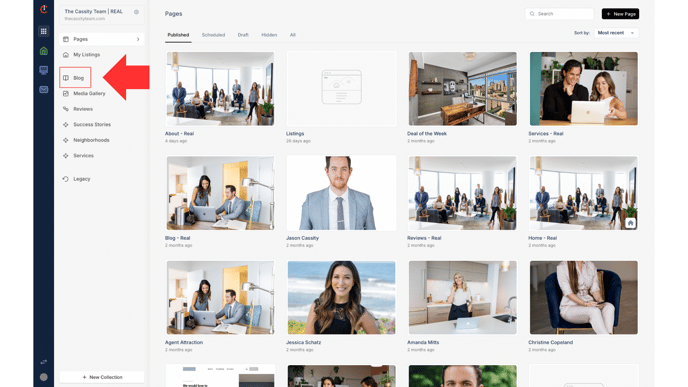
- Click "Blog" on the left sidebar.
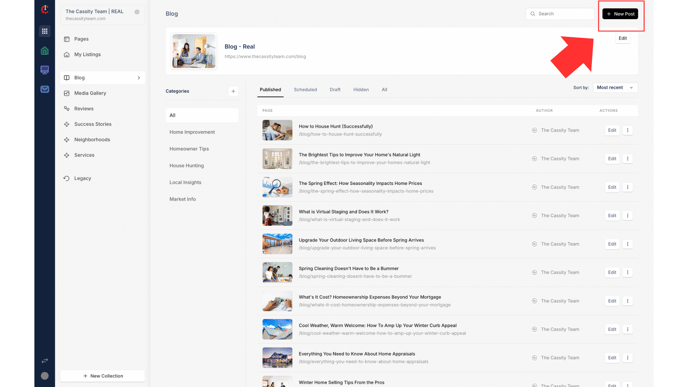
- Click "+ New Post."
-
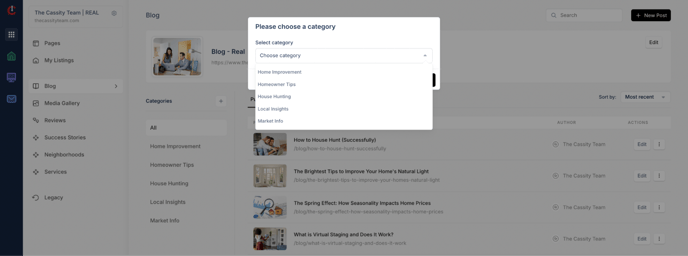
Choose a category for your blog post.
*Please note that you'll need to first create categories in order to create a blog post. To create a blog category, click the "+" next to "Categories" on the left sidebar.
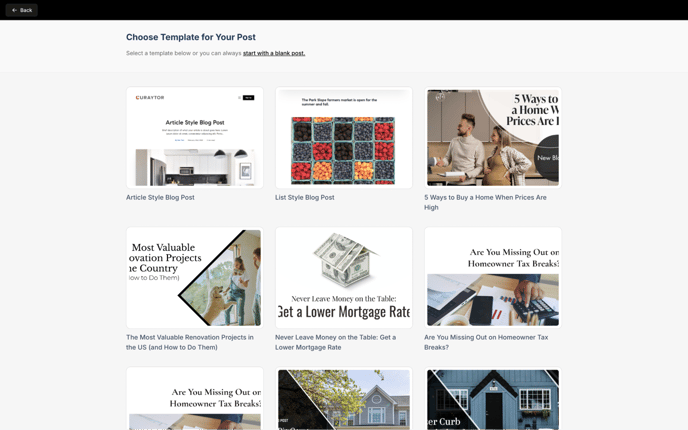
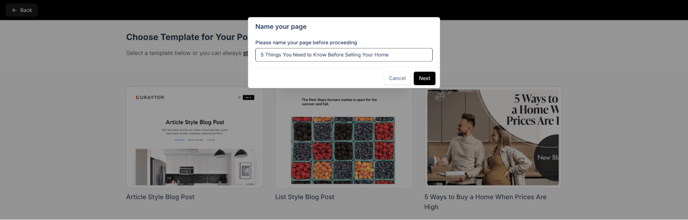
- From here you can either start with a blank post or choose an existing template to create your blog.
- Name your blog post.
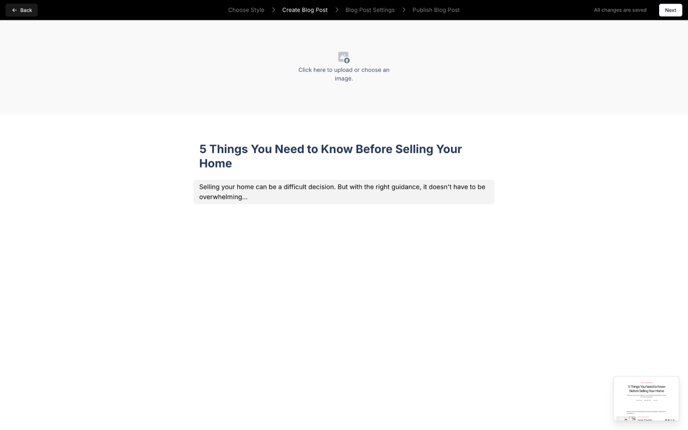
- To write your content, simply click and start writing.
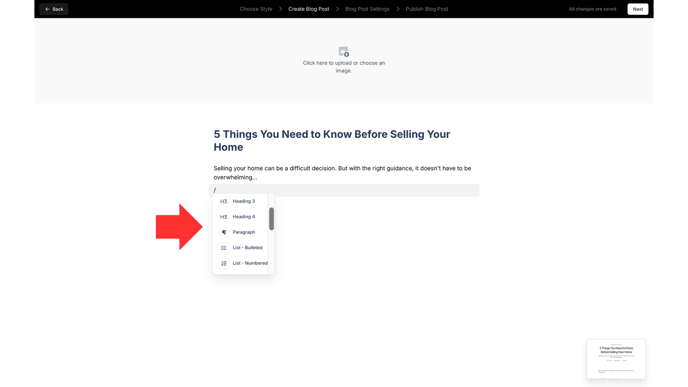
- To add a headline, bullet points, quote, image, video, button, etc., type "/" and it will show you all of your options.
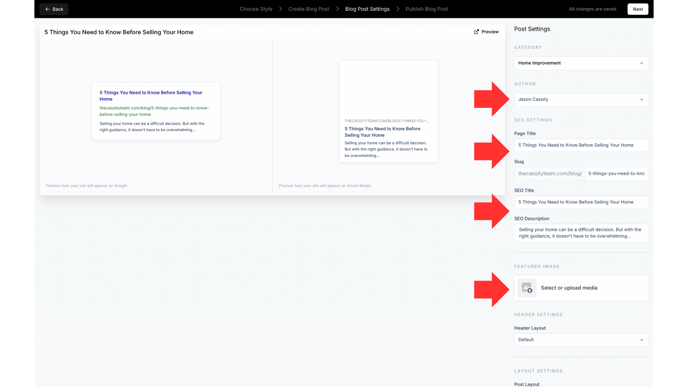
- Once you've created your blog post, click "Next," select the Author, and edit the slug, SEO title and description to how you'd like it. Select a featured image.
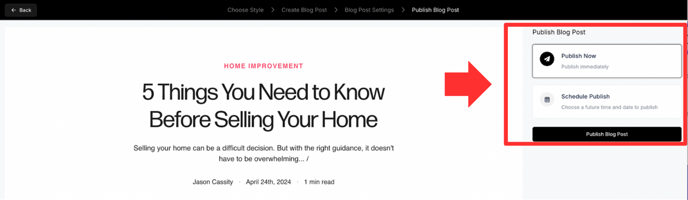
- Click "Next" to preview your blog post and choose to either publish your blog post immediately or schedule it for later.
Watch the video below for a full walkthrough 👇
https://www.loom.com/share/fa793ca7c3b74095a58247efb4cc45f7?sid=f0f47440-7210-4abb-a147-f09246a85872